Exporting data as an Excel file
Servoy can export data from your solution as an Excel export file.
The exported data can:
- Include a header row (for field names).
- Include one or more export fields.
To export data as an Excel file:
- Go to the form for which you want to export the data.
- Make sure the data you want to export is in your found set.
- Choose File > Export > To Excel file.
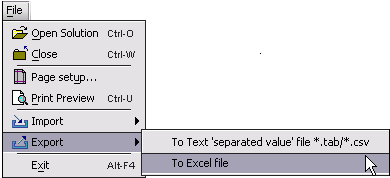
- You should see the Export dialog:
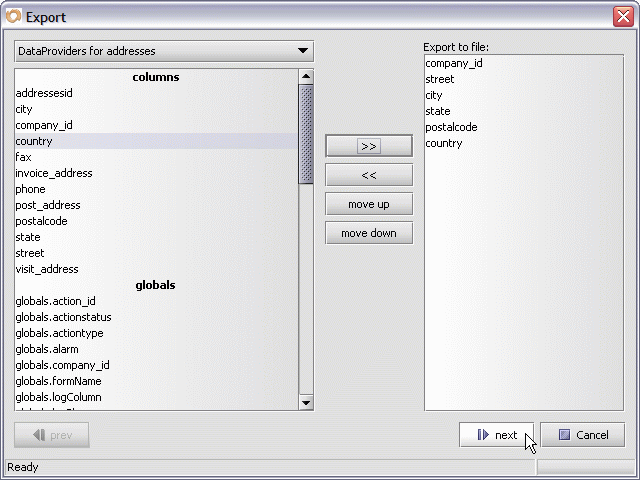
- Choose the field(s) you want to export the data from.
- Click the >> button to move the fields you want exported to the
Export to file list on the right.
- Use the move up and move down buttons to change the
order of the export fields in the Export to file list. - Press the Next button.
- Enter the name of your Excel export file (.XLS) in
the File Name text box. - Choose the location for the Excel export file.
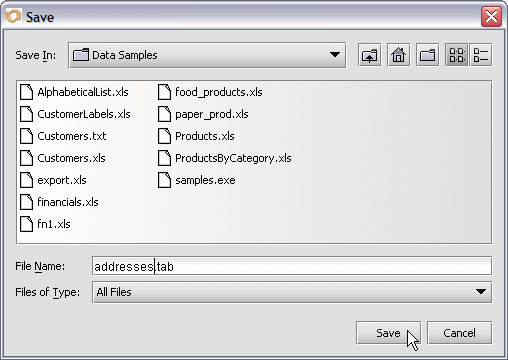
- Press the Save button to dismiss the Save File dialog.
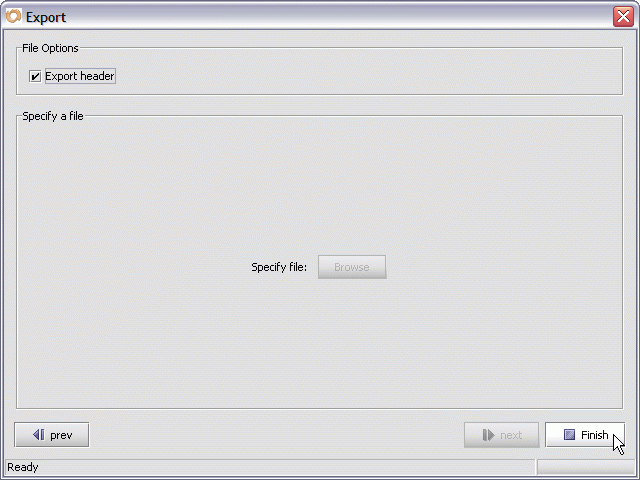
- Check the Export header checkbox
(If you want the names of each column to appear as the first
exported row).
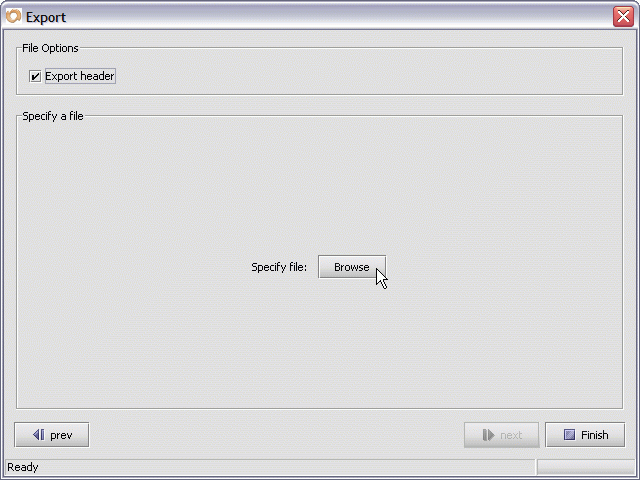
- Press Next to start the export of your data - from the currently active form.
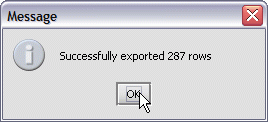
Press the OK button to dismiss the Message dialog.
The data in your current found set is now available as an Excel export file.


