Importing data from a text file
Servoy can import data from plain text files (.TXT) into SQL tables. The imported files can:
- Use any separator.
- Have one or more columns.
Commonly used import formats are tab separated (.TAB) and
comma separated (.CSV) files.
To import data from a text file:
- Make sure you are on the form that you want to import data to.
- Choose File > Import > From Text file.
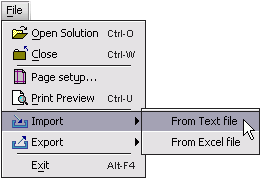
You will see the following Import dialog:
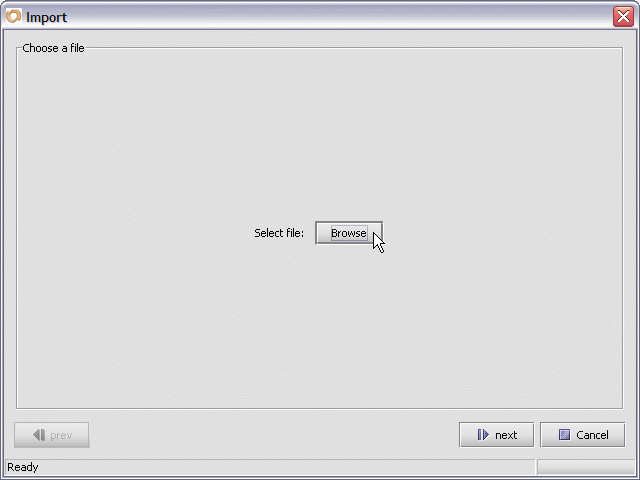
- Click on Browse to display the File Open dialog.
- Navigate to the text file you want to import data from.
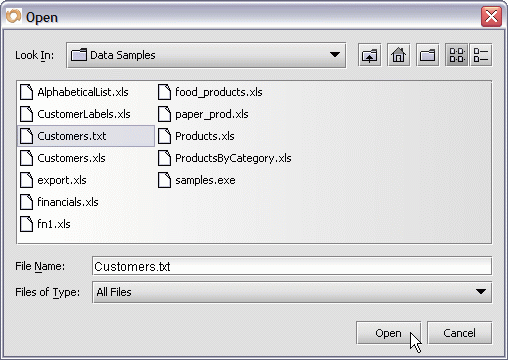
- Select the desired file.
- Press the Open button to display the next Import dialog.
In this dialog, you should see an overview of your import data:
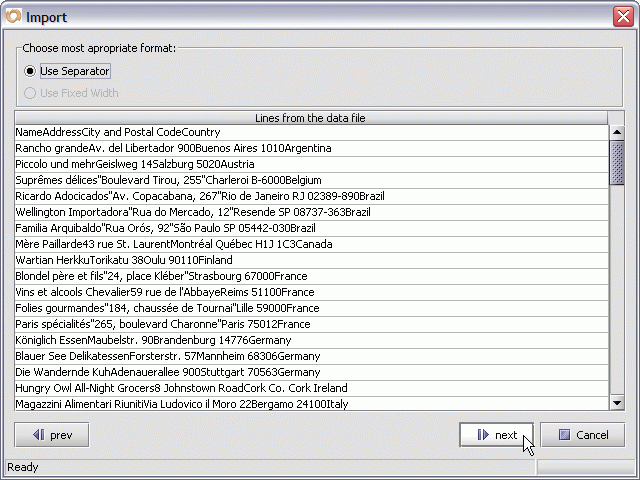
For your import, you can choose:
- To use a separator between fields.
- To use a fixed length width to delimit fields.
(if this option is enabled - not "grayed out").
To use a separator:
- Select Use separator.
- Click Next.
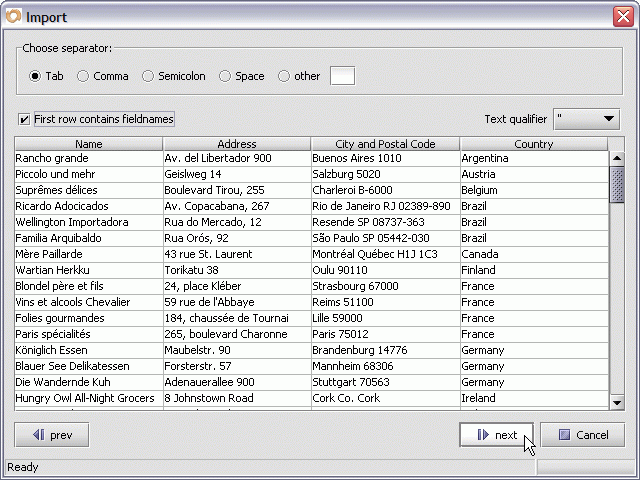
- Click the Choose separator radio button next to the type of
separator you want to use for your import:- Tab.
- Semi-colon.
- Comma.
- Space.
- Other (you can enter your own separator value).
- Check the checkbox First row contains fieldnames.
(only if your field names are in the first line of the text file).
- Click on Text qualifier from the pull-down menu and choose:
- " - Double quote.
- ' - Single quote.
- <none>
A text qualifier is a character that is used to separate text fields.
For example, comma separated files (CSV) generally
show " (double quotes) as a text qualifier.
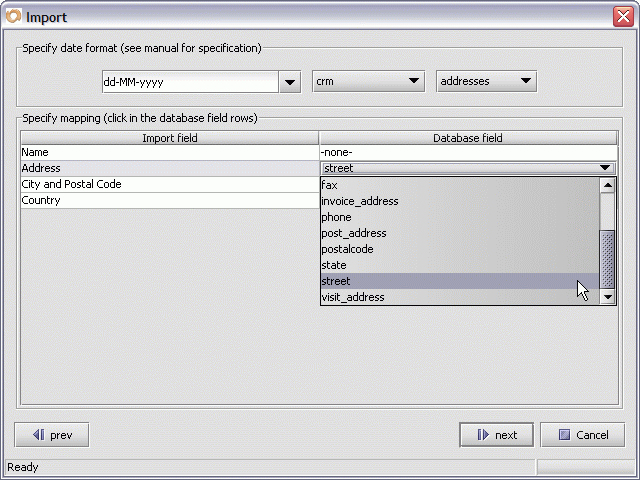
- Specify a date format (if applicable to the data you are importing).
For more information, see Importing dates.
- Now map each import field to the corresponding database field (column) you want to import into - by choosing the column name from the pull-down menu in each row of the Database field column.
- Press the Next button to start the import.

When the data has been imported, you will see:
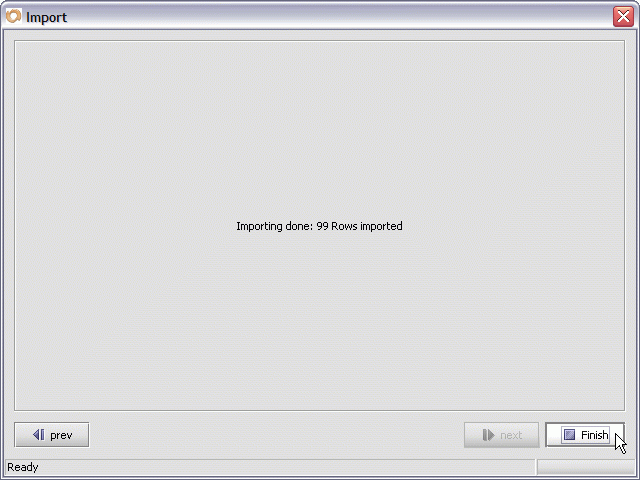
Press Finish to complete the import process.


