Print preview
Print preview enables you to see what your printed page(s) will look like before you print.
To open Print preview:
- Make sure that you are in Data (ready) mode - not in Find mode.
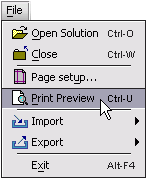
- Choose File > Print preview. OR
Press the keyboard shortcut CTRL-U / CMD-U.
Once the preview window is open, you can:
- Preview a specific page.
- Preview the next page when there are multiple pages.
- Preview the previous page when there are multiple pages.
- Go to the Page setup dialog.
- Go to the Print... dialog.
- Return to the currently active form.
Previewing a specific page
To preview a page when there are multiple pages:
- Select the page you want to preview from the page pull-down menu.
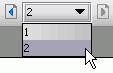
- You will now see the page preview you selected.
Previewing the next page
To preview the next page when there are multiple pages:
- Click once on the Next page arrow.
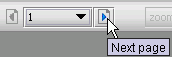
- You will now see the next page preview.
Previewing the previous page
To preview the previous page when there are multiple pages:
- Click once on the Previous page arrow.
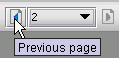
- You will now see the previous page preview.
Going from Print preview to the Page setup dialog
To go to Page setup:
- Click the Page setup button.

- You will now see the Page setup dialog.
For more detail on setting up your page to print, see the
section on Page setup.
Going from Print preview to the Print dialog
To go to Print:

- You will now see the Print dialog.
Introduction to the Print dialog
The Servoy Print dialog has three tabs:
- General.
- Page Setup.
- Appearance.
The Print dialog General tab
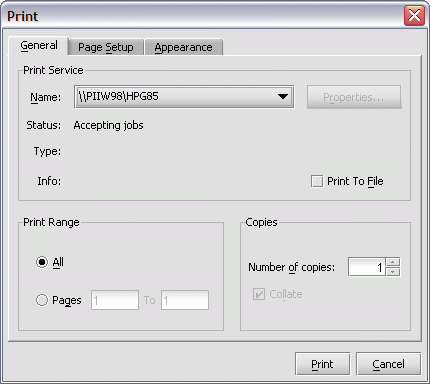
When you are on the General tab, you can:
- Select a specific printer name to use for printing. OR
Print to a file (such as a .PDF file).
- Click on the Properties button to view the Properties dialog for
the selected printer (when the Properties button is enabled). - Show the print status, type and infomation.
- Pick a print (page) range.
- Enter the number of copies to print.
The Print dialog Page Setup tab
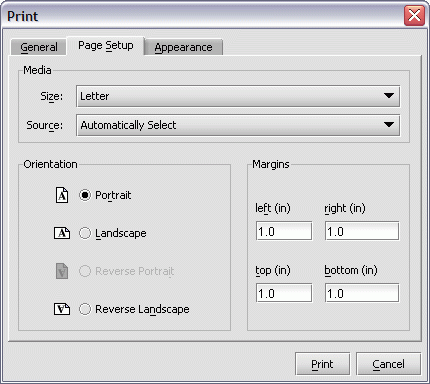
From the Page Setup tab you can:
- Specify the print page size.
- Determine the paper source for your printer.
- Pick the orientation for your print page.
- Set the margins for your print page.
Picking a page size for printing
To pick a page size for printing:
- Click once on the Size pull-down menu.
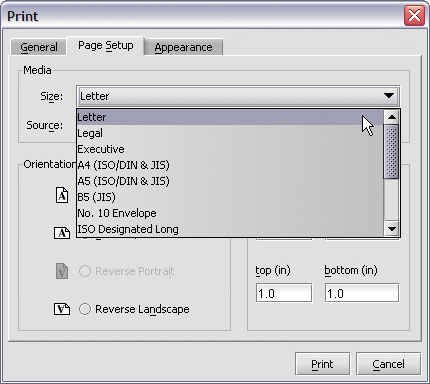
- Select a page size from the Size list.
NOTE: The list of available paper sizes that appears in the Size pull-down menu depends entirely on the printer you select to use. For specific information, refer to the documentation for the selected printer.
Choosing the paper source for your printer
To select a paper source for your printer:
- Click once on the Source pull-down menu.
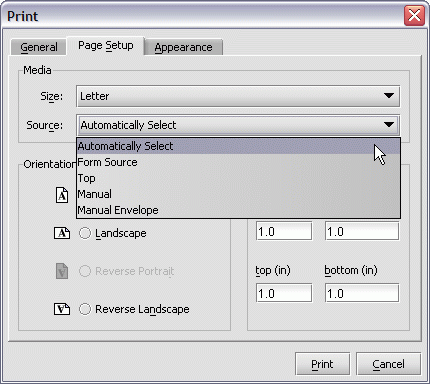
- Select a tray option from the Source list.
NOTE: The list of available options that appears in the Source pull-down menu depends entirely on the printer you select to use. For specific information, refer to the documentation for the selected printer.
Specifying the orientation for your print page
To set the orientation for your page:
- Select one of these Orientation radio buttons:
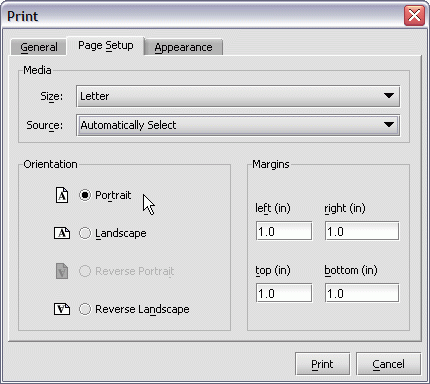
The print on the page is at a right angle to the longest
side of the page.
The print on the page is parallel to the longest
side of the page.
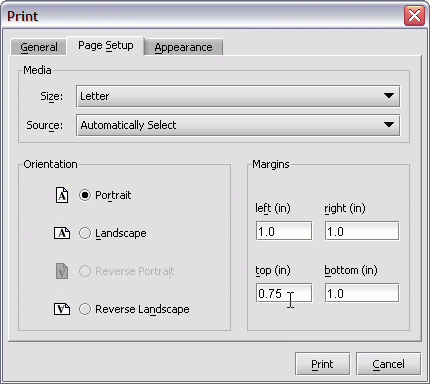
Setting the margins for your print page
To set up the margins for your page:
- Enter the value(s) in the Margins boxes provided for the
left, right, top and bottom margins.
The Print dialog Appearance tab
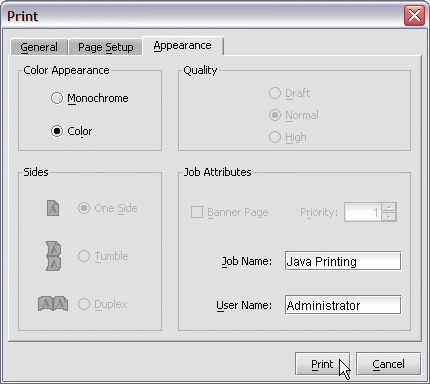
From the Appearance tab you can:
- Choose to print in color or monochrome.
- Pick the quality that you wish to use for your printing
(when this option is enabled). - Select the number of sides of the page you wish to print on
(when this option is enabled). - Enter a job name and user name.
- Add a priority for your printing (when this option is available).
Once you have selected the options you wish to use for printing,
press the Print button to begin printing.
NOTE: Printer properties may vary from printer to printer. For specific information, refer to the documentation for the printer.
Returning to the current form from Print Preview
To return to the current form:
- Click once on the Close button.

- The Print preview dialog will close.
- You will be returned to the form you were viewing.


